




Launched in 2020, the Meta Business Suite platform consists of a space from which to manage all the commercial and marketing activities of a business on Facebook, Messenger and Instagram.
Since Meta’s origins, investment in advertising has only grown. In fact, ad reach increased by 31% in September 2023 compared to the previous year, while the average price per ad decreased by 6%, according to platform data.
Therefore, Business Suite is an essential tool for managing Meta’s networks and for multiplying the reach of business advertising on them. In this article, we tell you exactly what Business Suite consists of, its main differences with Meta Business Manager, and what steps you have to take to get the most out of it.
What is Meta Business Suite and who is it for?
Meta Business Suite is a platform offered by Meta to centralize the management of activities on Facebook and Instagram: from creating and scheduling posts, to performing performance analysis, responding to customer messages, creating ads, and carrying out marketing actions.
It is available on desktop computers and mobile devices and is aimed at companies and professionals who are looking to manage their commercial activities on Meta’s platforms more efficiently.
Business Suite is aimed at the following users:
- Companies, especially small ones, that manage their networks internally.
- Community managers and other independent digital marketing professionals.
- Content creators who centrally manage their Facebook and Instagram accounts.
- External service providers such as marketing and advertising agencies.
What is Business Suite for?
Business Suite has different uses focused on the unified management of Meta’s platforms. Among the most outstanding are the following:
- Content creation and scheduling: Meta Business Suite allows you to publish directly on Facebook and Instagram, but also to schedule posts in advance. It thus offers an option to carry out content planning internally, without the need to go to additional platforms.
- Management of interactions: communication with followers and customers is also centralized in Business Suite. Through a unified inbox, you can respond to private messages on Facebook, Instagram or Messenger, as well as implement automations and quick responses.
- Ad creation: the platform allows you to promote publications in profiles, but also to create ads from scratch.
- Manage sales: those companies that have a commercial account have the possibility of accessing it through Business Suite from the computer.
- Performance analysis: provides detailed information on the performance of publications and campaigns, including metrics such as reach, engagement and conversions.
- Permissions management: from Business Suite it is possible to add and manage the permissions of creators and access to content and ads.
- Review of all activities: from the “Activity” tab, it is possible to obtain a complete view of recent actions on the profiles of an organization.
- Creation of to-do lists: actions and elements such as unread messages or comments can be prioritized.
- Functionalities for creators: with Business Suite, content creators can access a series of tools to boost their content, such as live broadcasts.
Although these are the main tasks that Business Suite facilitates, the platform offers other functionalities. Thus, in the “More tools” section, both companies and influencers or creators can access options to schedule appointments or manage events, among others.
Main Differences between Meta Business Suite and Business Manager
The main difference between Meta Business Suite and Meta Business Manager is that the former is used to manage the activity and advertising of profiles on Meta’s networks, while the latter is intended to manage user permissions of the company account on the platform.
In short, with Business Manager, users can protect access and the different advertising actions that are carried out in Meta. Its use is complemented by that of Business Suite and the Ads Manager.
5 Steps to Start Using Business Suite
There are at least 5 steps to take into account to start taking advantage of the full potential of this platform:
1. Create an Account
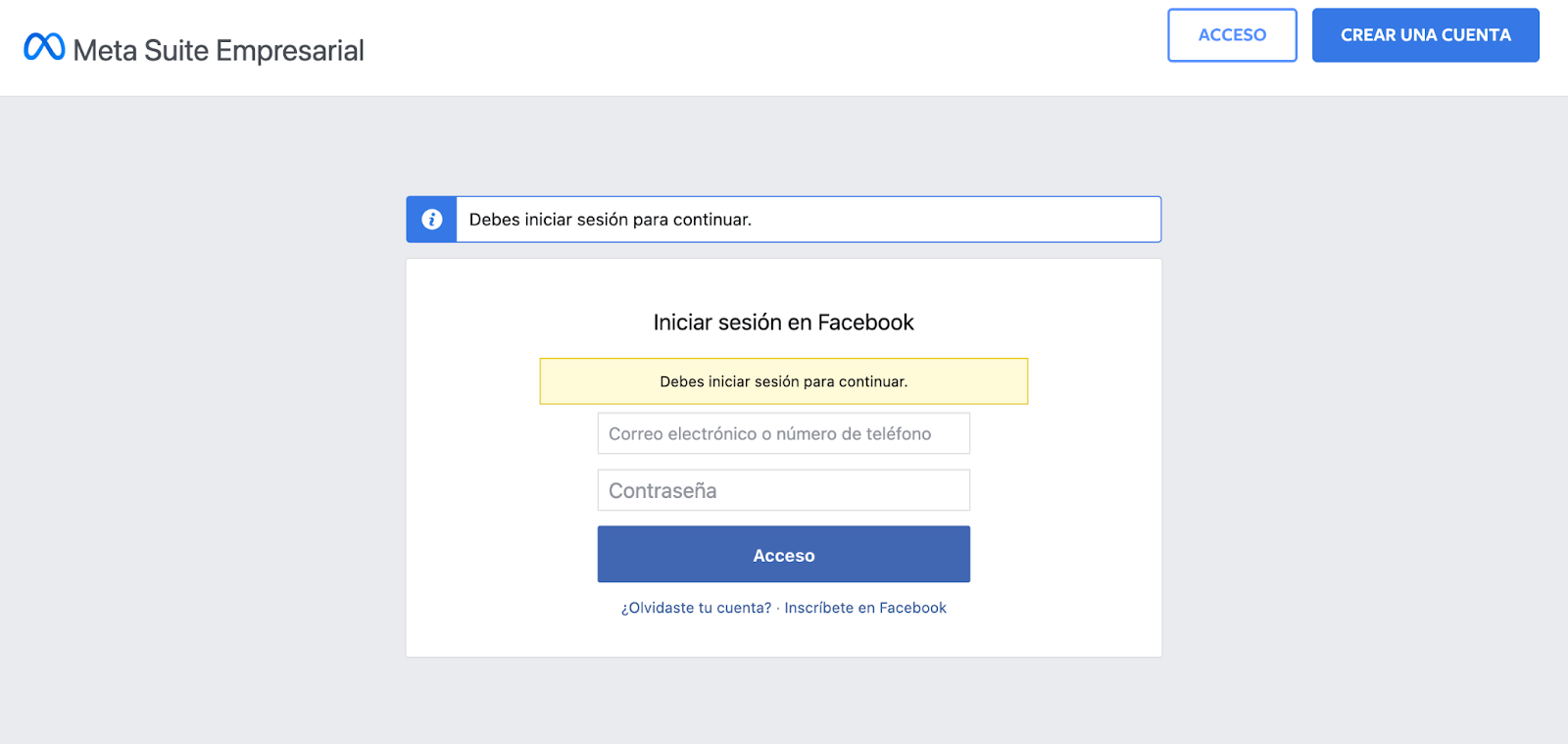
The first step is to navigate to the login page and select the option to create an account. It is also possible to download the Meta Business Suite mobile application. You will be asked to access your Facebook account or create one, if you do not have one.
Once created, it is necessary to include contact information: name, email address, date of birth, telephone and password, which will not be publicly available, but only for the platform itself.
2. Connect Accounts
The time has come to connect the business pages that you already have, so that it is possible to manage them from Business Suite.
1. Connect Facebook
In the case of Facebook pages, it is common for Meta to perform this action automatically.
Otherwise, Business Suite allows you to create a page (if it does not already exist), claim a page or request access to manage a page (if the owner is someone else). All of this is available by clicking on “Settings”, then on “Accounts”, “Pages” and the blue “Add Pages” button.
2. Connect Instagram
To connect accounts on Instagram, the steps for mobile devices include:
- From the main menu in the Meta Business Suite for mobile application, go to “Settings” and then to “Connect” and “Connect account”.
- You are asked here to confirm if you want to allow access to Instagram messages. Once you have chosen the desired option, tap on “Continue”.
- Log in to your Instagram account and save or not your login information by choosing between “Save information” and “Not now”.
- Finish by tapping the option “Accept”.
In the case of connecting an Instagram account from a desktop computer, the steps are as follows:
- Click on “Settings” in the left sidebar, then on “Business assets” and on “Add assets”.
- Choose “Instagram account” and, after accepting the conditions, click on “Claim Instagram account”.
- In the new window that has opened, log in to the Instagram account you want to connect.
- Click on “Confirm” to close the process
3. Configure Access
Access to Business Suite involves two steps:
- In the case of using a desktop computer, you must access an account on Facebook and navigate to business.facebook.com
- For use in mobile applications, it is necessary to download the Meta Business Suite application
Then comes the time to add those who are going to collaborate in the management of the accounts.
To add collaborators, access from “Settings”, then click on “Users” and “People”. The option appears as a blue “Add People” button, which is done by adding the email address of each specific user (for example, the marketing professionals who are going to take care of content management). A total of 25 users associated with the page can be added, and Business Suite facilitates three levels of access:
- Full control over the configuration of the account and other assets of the company in Meta, in addition to the tools and users of the pages. This level of access is appropriate for business owners.
- Partial access: ideal for the marketing team, it allows them to work on the content and tasks assigned to them
- Advanced options: the option is given to assign specific tasks to some people (for example, access as a financial editor to those who take care of this area of management).
Once the level has been chosen, select which commercial assets you want to give them access to (which Facebook or Instagram pages) and finish the process.
In addition to adding users for management, Business Suite also allows you to connect partners to share files, an option that can be useful to facilitate access to the page to an advertising or marketing agency. In this case, it is accessed from “Settings”, then clicking on “Users”, “Partners”, and “Partners to share files”.
This facilitates, for example, that the agency itself takes care of giving the appropriate permissions to each person in its team, so that the company can also delegate that work. Or even for those creators specialized in UGC (User Generated Content) who want to share material with professionals who help them make their publications.
4. Create or Plan a Post or Story
In the Business Suite version for desktop computers, the steps are as follows:
- From Business Suite, access the content, planning or desktop options.
- Click on the “Create post” or “Create story” option, as you prefer.
- Select where you want the post or story to appear: on Facebook, on Instagram or on both.
- Enter all the details of the post (text, images or videos, location, privacy preferences…) or the story. You will have a preview available.
- Choose the “Schedule” option if you want it to be published later, according to your calendar
- Choose the “Promote” option if you want the post to also be a paid ad
- Click on “Publish”
In the case of using the Business Suite mobile application, the steps are:
- Tap on “Create post”
- Choose the locations: Facebook, Instagram or both
- Enter the data and multimedia files you want
- Decide whether to promote the post
- After accessing the preview, you can schedule the post, save it as a draft, or publish it directly
Advantages of Using Business Suite
As we have just seen, when using Meta Business Suite you access a complete tool for the business management of various functions and processes on Meta’s platforms. This, in turn, translates into the following advantages that promote optimized management of social profiles:
- All-in-one platform for centralized management of content and interactions. Includes highly useful tools, such as a unified inbox or publication scheduling
- Advanced performance analysis: which serves to optimize investment in advertising or improve engagement in profiles
- Compatibility with multiple users: so that several people can participate in the effective management of profiles
If you want to start using this platform and give a boost to the management of your social networks, one of the most practical solutions is to contact an agency specialized in digital platforms. From 2btube we help companies incorporate the latest data-based technology so that they can take advantage of the full potential of the digital channels at their reach. In addition, we are Third Party Partner of Meta, which allows us to carry out an exclusive and premium management of channels on the platform.
Want to know more? Get in touch with us and discover how we can help you.